Preflight
Lighter files, faster modeling, quicker renders.
SketchUp models get heavy and disorganized as they grow: hidden materials, reversed faces, nesting nobody needs, and textures far larger than the surface they sit on. Preflight finds all of it, shows you where, and fixes what you check, so the model is faster to work in and quicker to render. It reports before it acts, and it never saves: close without saving and the file is exactly as it was.
Preflight is in beta.
Email us for access.
Manage your licenses
One real model, one run
266 → 106 MB
92%
702
Under an hour
Figures from Preflight’s own Postflight Report. A full cleanup with every fix on except moving geometry onto one tag and erasing hidden faces and groups, on SketchUp 2026 and an Apple M4 Pro Mac mini.
What slows a model down
Materials nobody can see
Faces the wrong way around
Scaled instead of edited
Groups inside groups
Copies that should be components
Heavy geometry, flagged
Screenshots used as textures
Texture paths pointing nowhere
How it works
01
Scan
02
Walk
03
Fix
04
Report
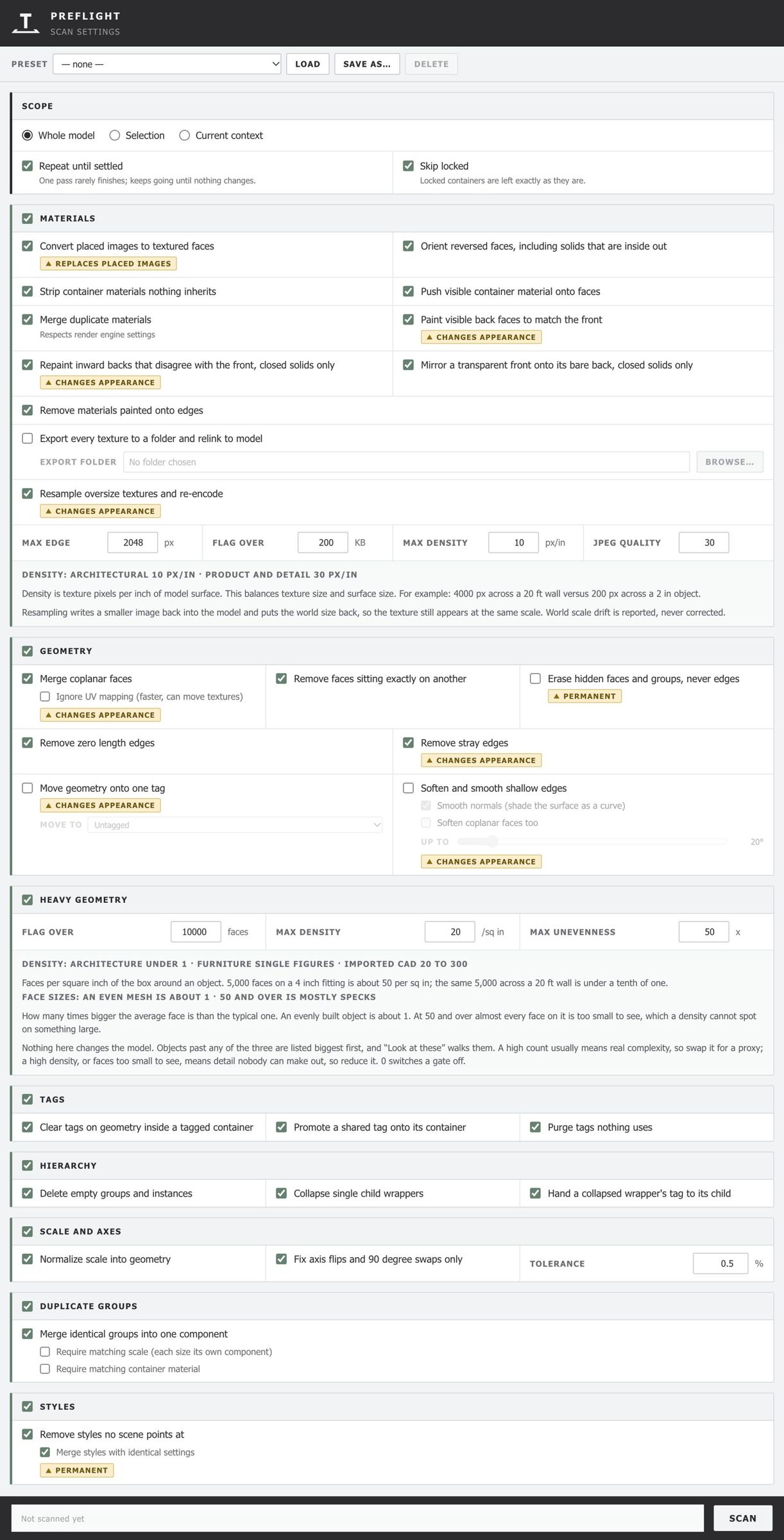
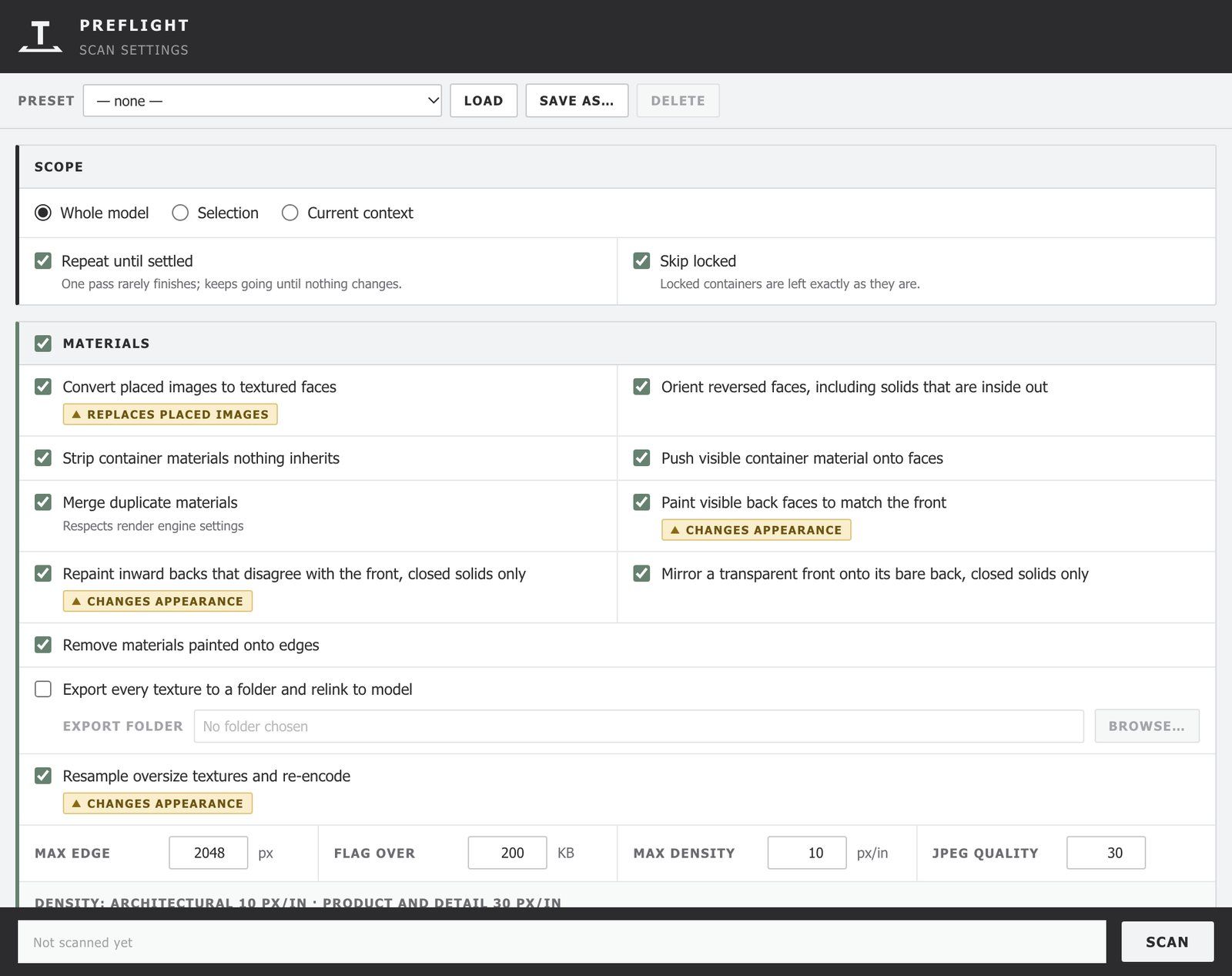
Scroll the window to see every section
Every fix is a checkbox
Scan Settings holds every fix, grouped by area, with a fresh install’s defaults already set. Any fix that alters how the model looks, replaces placed images, or can’t be taken back carries a tag on its row, and every one can be switched off. Presets save and load a whole setup.
- ▲ Changes appearance
- ▲ Replaces placed images
- Permanent
For V‑Ray users, this is the part that matters
Converting to V‑Ray? Each material looks for its texture where it was first loaded, so moved files become broken links mid-render. Run Preflight first with texture export on. It writes every texture to a real folder and relinks the model. Then convert.
Why you can trust it with your model
- It reports before it acts. The scan writes nothing at all, so you can look before deciding anything.
- It protects your original file. It never saves on its own, and it gives you the option to save a backup copy. Closing without saving leaves the file exactly as it was. That’s the recovery path, and it doesn’t depend on undo behaving itself on a model this size.
- Every fix is switchable. Anything that changes appearance, replaces placed images, or can’t be undone is tagged in the window before it runs.
- It leaves dynamic components alone. Nothing is written inside them, since they rebuild their own contents.
- It asks about anything it can’t settle. What the geometry can’t decide on its own is listed for you, not changed.
- Counted in objects. A count of 96,592 back faces is not something anyone can act on. The same finding shown as 161 objects is an afternoon of work.
- Mac and Windows. SketchUp 2021 or later. No compiled parts, and nothing fetched at runtime.
What it doesn’t do
- It can’t undo an old save. It can’t repair a file that has already been broken and saved over.
- It doesn’t simplify geometry. There’s no polygon reduction of the kind Skimp does. Instead, heavy objects are flagged and listed biggest first, ready for a tool like Skimp to work on.
- Some fixes change appearance on purpose. Five that ship switched on do: painting visible back faces, repainting inward backs, resampling textures, merging coplanar faces, and removing stray edges. Each is tagged in the window and can be switched off.
- Resampled textures keep less detail. Only textures over the limits you set are resampled (2,048 px on the long edge by default), never below 512 px, and a result is kept only if it’s smaller than the original. Each still appears at the same scale. Once the model is saved, the original, larger images are no longer in it.
- It doesn’t reach inside a renderer’s own data. Anything already converted to V‑Ray isn’t repointed. Run Preflight first.
Try it free
The free version is the same download. It scans, walks, and reports on any model, and runs three fixes for good, each with its own menu item you can bind to a key in SketchUp’s Shortcuts preferences. A key acts on the selection; with nothing selected, on the group you’re in; failing that, on the whole model. One undo reverts it.
| Feature | Free | Full · $149 |
|---|---|---|
| Scan, including heavy geometry | Included | Included |
| Walk the Problems | Included | Included |
| Scan report and Readme | Included | Included |
| Fixes | Three | All 29 |
| Full cleanup, model-wide | One, when you confirm your email | Unlimited |
| Postflight Report after a cleanup | With your one free cleanup | Included |
| Machines | Any | Two per license |
| Updates | Included | Every future update included |
The three free fixes
Merge coplanar faces
▲ Changes appearanceErase stray edges
▲ Changes appearanceGeometry to Untagged
▲ Changes appearance
All 29 fixes
Materials
- 01Convert placed images to textured faces.
▲ Replaces placed images - 02Orient reversed faces, including solids that are inside out. Turns faces the right way around and swaps their materials with them.
- 03Strip container materials nothing inherits. Removes paint from a group or component when nothing inside it shows that paint.
- 04Push visible container material onto faces. Paints a group’s material onto the faces that were displaying it, so the group itself can be left unpainted.
- 05Merge duplicate materials (respects render engine settings). Materials with different render-engine settings, such as V‑Ray, are kept apart.
- 06Paint visible back faces to match the front.
▲ Changes appearance - 07Repaint inward backs that disagree with the front, closed solids only.
▲ Changes appearance - 08Mirror a transparent front onto its bare back, closed solids only.
- 09Remove materials painted onto edges.
- 10Export every texture to a folder and relink to model.
Off by default, since it needs a folder chosen first - 11Resample oversize textures and re-encode. Shrinks textures far bigger than they need to be and keeps each at the same scale. Settings: max edge 2,048 px, flag over 200 KB, max density 10 px per inch of model surface, JPEG quality 30. Never below 512 px, and a result is kept only if it’s smaller.
▲ Changes appearance
Geometry
- 12Merge coplanar faces. Option: ignore UV mapping, faster but can move textures; off.
Free ▲ Changes appearance - 13Remove faces sitting exactly on another.
- 14Erase hidden faces and groups, never edges.
Off by default Permanent - 15Remove zero length edges.
- 16Remove stray edges.
Free ▲ Changes appearance - 17Move geometry onto one tag. You choose the tag.
Free Off by default ▲ Changes appearance - 18Soften and smooth shallow edges. SketchUp’s own Soften Edges controls: a 20° angle, smooth normals on, and soften coplanar faces too.
Off by default ▲ Changes appearance
Heavy geometry
A report, not a fix · FreeTags
- 19Clear tags on geometry inside a tagged container.
- 20Promote a shared tag onto its container.
- 21Purge tags nothing uses.
Hierarchy
- 22Delete empty groups and instances.
- 23Collapse single child wrappers. Removes groups whose only job is to hold one other group.
- 24Hand a collapsed wrapper’s tag to its child.
Scale and axes
- 25Normalize scale into geometry. Builds a stretched or scaled object’s scale into its geometry and resets the object to 1.
- 26Fix axis flips and 90 degree swaps only.
Tolerance 0.5%.
Duplicate groups
- 27Merge identical groups into one component. Copies of the same group become instances of one component, so the file stores the geometry once. Two options, both off: require matching scale, and require matching container material. With both off, a size run of the same object becomes one component at several scales.
Styles
- 28Remove styles no scene points at.
Permanent - 29Merge styles with identical settings. A sub-fix of 28.
Price
License
Machines
Preflight
$149 at launch
Request beta accessMoving machines
Offline
If a license ends
Requirements
- SketchUp 2021 or later, on Mac or Windows
- No compiled parts, and nothing fetched at runtime
- An internet connection to activate a license, then once every 28 days
FAQ
Will it change my model without asking?
No. The scan writes nothing, fixes run only when you check them, Preflight never saves on its own, and you can save a backup copy of your original file. Close without saving and your file is exactly as it was.
Does it reduce polygons?
No. It flags heavy objects, biggest first, so you can proxy them or simplify them with a tool like Skimp.
Is it really a one-time payment?
Yes. You pay $149 once and keep Preflight. Every future update is included, major versions too.
How many computers can I use it on?
Two at a time. If you replace a computer, release the old one from the plugin or from your account page, up to three times in any 30 days.
Can I try it first?
Preflight is in beta. Email contact@terminalagency.com to request access.
Who am I buying from?
Checkout is run by Paddle, our reseller and merchant of record. Paddle handles payment, sales tax and VAT, and invoices. The software is made by TERMINAL, a DBA of 20/20 Studio LLC.
Can I get a refund?
See our Refund Policy.
Do you offer team or studio licenses?
Contact us at contact@terminalagency.com and we’ll set up licenses for your team.